
Introduction
Apps running silently in the background can affect your phone’s speed and battery life significantly. Such apps continuously engage in tasks like updating, syncing, or using location services, which consume resources without your direct involvement. By focusing on effective management of these background processes, this guide will empower you to boost your device performance and extend battery life on both Android and iOS platforms.
Understanding Background App Processes
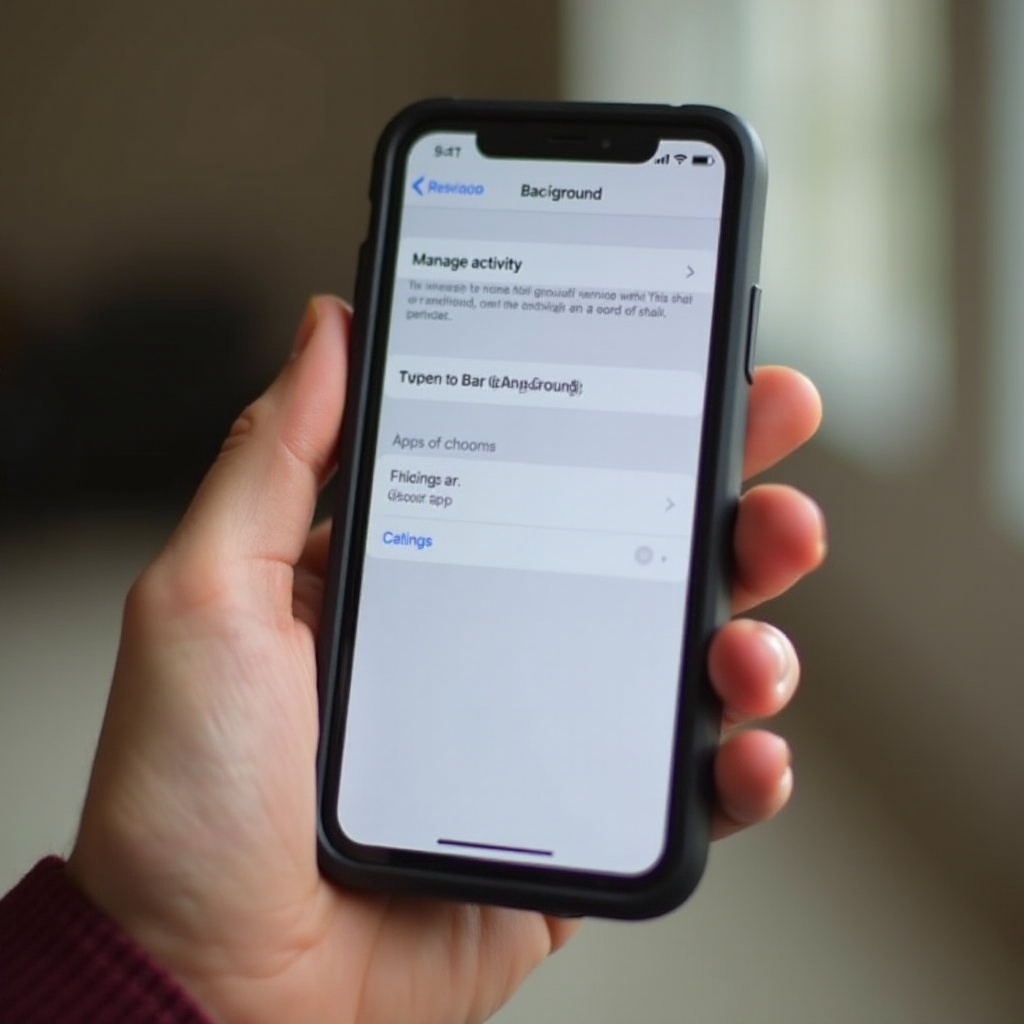
Background app processes perform operations that contribute to multitasking but often lead to unwanted resource consumption. These processes help apps update content, syncs, or run location-based services. Although some level of background activity is essential for app functionality, excessive use can result in slower performance and faster battery drain.
Recognizing which apps resourcefully manage or misuse these background privileges is vital for optimization. Equipped with this knowledge, you’ll be better positioned to manage and mitigate the resource drain on your mobile device effectively.
Why Stopping Background Apps Is Important
Managing background apps provides several benefits. For one, it helps conserve your phone’s battery life, as fewer background processes mean less power consumption. This management also leads to enhanced phone speed, making your device more responsive. Additionally, by limiting unnecessary data usage, users on data plans can save bandwidth and reduce costs.
Taking control of these processes ensures your device remains efficient, extending the overall operational lifespan of your battery while positioning itself for high performance daily.

Identifying Apps Running in the Background
To efficiently manage background apps, the first step is identifying those that excessively drain resources. Both Android and iOS operating systems provide a clear view of battery and resource consumption through built-in tools.
-
Monitoring Tools for Android: Navigate to Settings > Battery > Battery Usage. Here, you’ll find detailed information about battery consumption per app, helping you identify apps that might need efficiency tweaks.
-
Monitoring Tools for iOS: Go to Settings > Battery on your iPhone. This section displays how each app is using up battery power, guiding you to identify and act on apps that are resource-heavy.
Understanding these tools on both platforms empowers you to take the next step towards effective background process management and improved phone performance.
Methods to Stop Background Apps on Android Devices
Once you identify the apps using up resources unnecessarily, employ these strategies on Android devices to manage their behavior effectively.
-
Using Battery Optimization: Enable this through Settings > Battery > Battery Optimization. Opt to optimize selected apps, which helps limit their background activities.
-
Adjust App Permissions: Tweak permissions from Settings > Apps & notifications > App permissions. Curtail permissions like location access, which can trigger unnecessary background tasks.
-
Disable Auto-Start Features: Prevent apps from auto-launching by visiting Settings > Apps > Auto-start. Pick the apps that don’t need to launch automatically to conserve resources.
By implementing these strategies, you ensure only crucial apps maintain background activities, thereby enhancing your device’s performance and battery life.
Methods to Stop Background Apps on iOS Devices
To manage background app activities on iOS devices, follow these approaches:
-
Manage Background App Refresh: Customize which apps can update in the background via Settings > General > Background App Refresh. You can choose to toggle this feature off entirely or specify individual apps.
-
Customize Location Services: Adjust location services by going to Settings > Privacy > Location Services. From here, allow location access only for apps that genuinely need it while inactive.
-
Use Screen Time for Restrictions: Use Screen Time to set app usage limits under Settings > Screen Time, helping regulate app resource consumption and time spent.
Through meticulous settings adjustments, you can assert control over iOS background processes, positively impacting battery longevity and performance capabilities.
Using Third-Party Tools and Apps
In scenarios where default options prove insufficient, employing third-party apps can offer advanced management capabilities:
-
Recommended Android Tools: Utilize apps like Greenify, which help hibernate apps to minimize background activity and save resources, or Tasker for advanced task automation.
-
Recommended iOS Tools: While options are fewer due to system constraints, apps such as Battery Life provide insights into consumption rates, informing better management strategies.
Complementing system settings with these apps can offer a robust solution to manage and optimize background processes effectively.

Advanced Tips and Troubleshooting
If issues persist despite default and third-party interventions, consider these advanced measures:
- Restart your device periodically to clear temporary data and reset any misbehaving apps.
- Uninstall and reinstall troublesome apps to reset their functions and background behaviors.
- As a last resort, conduct a factory reset, remembering to backup important data beforehand to prevent loss.
These steps enable you to tackle ongoing issues, reinstating ideal performance levels and avoiding resource mismanagement.
Conclusion
Effectively managing apps running in the background is essential for optimizing your phone’s battery life and overall performance. Armed with the knowledge and strategies outlined here, from settings adjustments to third-party tools, you have the tools needed to ensure a high-functioning device. Regular check-ins and updates to app settings will sustain these benefits, keeping your phone in peak condition for all your daily needs.
Frequently Asked Questions
How often should I check for background app activity?
It is advisable to check app activity every few weeks or after noticing a performance drop, ensuring optimal function.
Can stopping background apps improve my battery life significantly?
Yes, reducing background processes can lead to notable improvements in battery life, reducing unnecessary power usage.
Are there any risks associated with disabling background apps?
Disabling essential background apps could hamper app functions, so identify non-essential apps before proceeding.