
Introduction
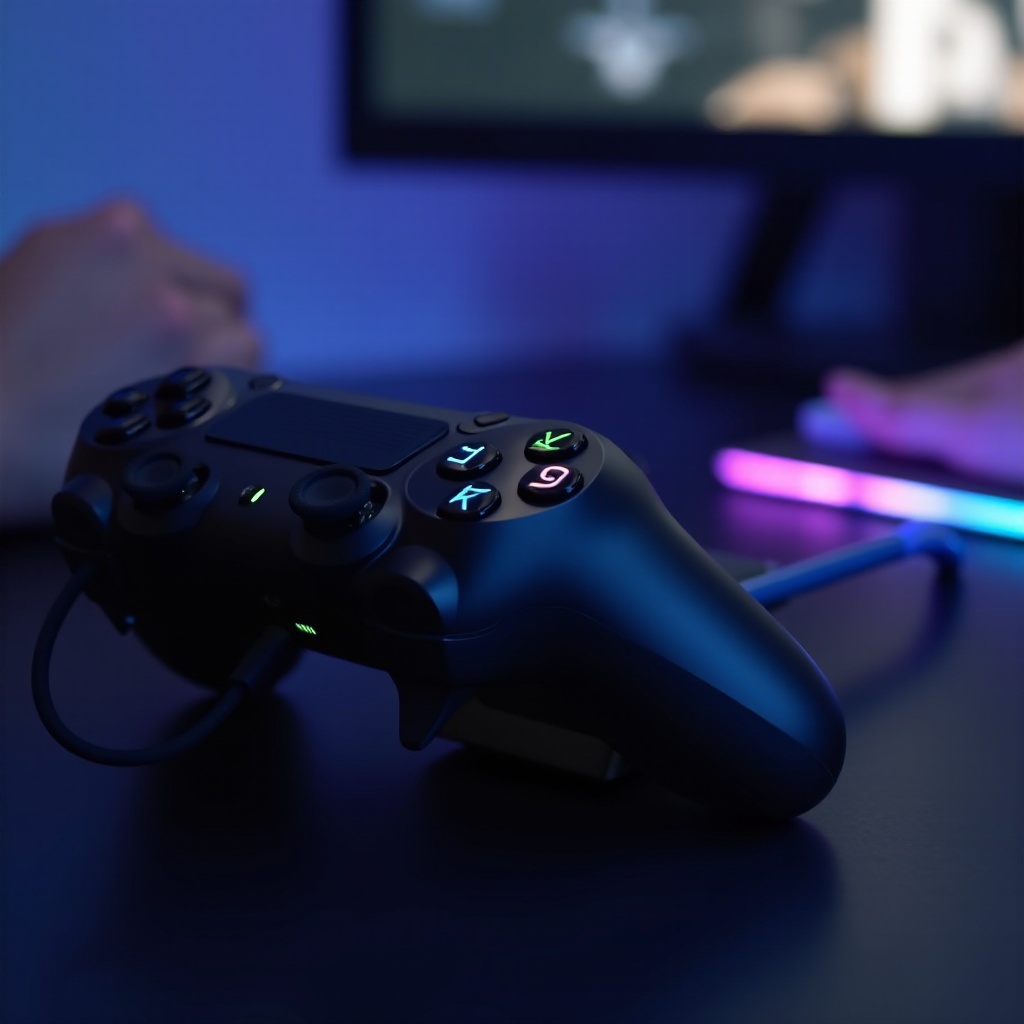
The PS5 controller, a masterpiece of gaming innovation, can sometimes leave players exasperated when it refuses to charge. Within this guide, you’ll discover straightforward steps and solutions to diagnose and resolve charging issues, ensuring your gaming adventures remain seamless and enjoyable.
Initial Diagnostic Steps
Before jumping to more advanced solutions, begin with these basic checks to identify the root of the charging problem:
-
Check Your Power Connection: Verify that the controller is connected to a power source that works. Try a different outlet to rule out issues with the current electrical socket or extender.
-
Verify the USB Cable and Port: Examine the USB cable for any visible damage. Replace it with a functioning cable if necessary. Also, connect the controller directly to the PS5 console to eliminate possible faults with the cable or charging port.
-
Test with Alternative Power Sources: If the controller remains non-responsive, attempt charging it via a different power source, such as a laptop USB port or a power bank.
Once these steps are complete, it’s important to investigate if software-related issues might be interrupting the charging process before moving on to possible hardware faults.
Software Solutions
Sometimes, the culprit can be a software glitch affecting your controller. Here are a few ways to resolve these issues:
-
Update Your PS5 Firmware: Ensure that both the console and the controller have the latest software. Navigate to Settings > System > Software Update to verify and install any available updates.
-
Perform a Soft Reset on the Controller: A soft reset can clear issues with temporary settings. Using a pointed object, press the small reset button on the back of the controller and then reconnect it to the console.
-
Troubleshoot Connection Settings: Access Settings > Accessories > Bluetooth and Devices, and confirm the controller is connected without any hitches. If needed, disconnect and reconnect to refresh the connection.
These software troubleshooting methods may rectify minor glitches. If your controller still doesn’t charge, proceed to investigate potential hardware complications.
Inspecting Hardware Issues
Assess whether hardware issues might be contributing to the charging problem by carrying out the following checks:
-
Clean the Charging Port: Dust and debris can gather in the charging port, obstructing connections. Use compressed air or a gentle brush to tidy it up.
-
Inspect for Physical Damage: Check for any visible damage on the controller, particularly around the charging port. Handle your controller with care to prevent additional harm.
-
Evaluate Battery Health: Over time, batteries can degrade, leading to charging issues. A professional assessment may be required to test or replace an older battery if the controller fails to maintain a charge.
Having inspected for hardware issues, consider advanced solutions if the charging problem remains unsolved.
Advanced Repairs and Replacements
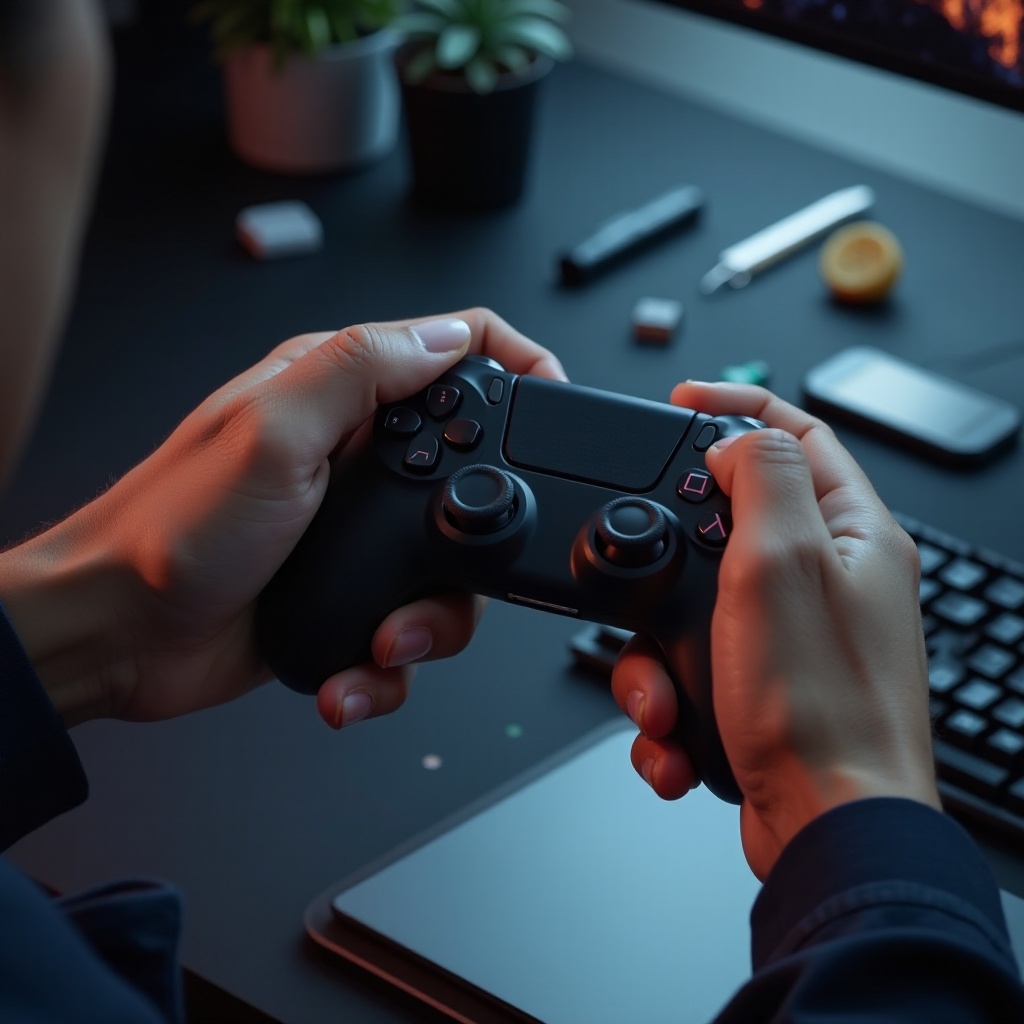
Should your charging woes persist, more advanced solutions could be necessary. Consider these options:
-
Consider Replacing the Battery: A faulty battery is a frequent cause of charging problems. Look into getting it replaced by a qualified technician to avoid voiding warranties or causing further damage.
-
Explore Professional Repair Services: If you’re not keen on replacing the battery yourself, professional repair services can diagnose and fix intricate issues.
-
Understand Warranty Options: Check if your controller is covered by a warranty. If so, reach out to Sony support for advice on repairs or replacements.
With advanced solutions at hand, move forward by adopting preventive measures to ensure your controller operates smoothly.
Preventive Maintenance Tips
Keeping your PS5 controller in top shape is essential for uninterrupted play. Here are some tips to help:
-
Optimal Charging Practices: Disconnect the controller once it’s fully charged to prevent overcharging. Where possible, avoid using the controller while it’s charging to maintain battery health.
-
Store Your Controller Properly: Place your controller in a cool, dry area when it’s not being used. Exposure to excessive temperatures can affect battery functionality.
-
Avoid Overheating: Ensure your console and accessories have adequate ventilation to prevent overheating, which can lead to charging issues.
Incorporating these preventive strategies will prolong the lifespan of your controller and reduce the likelihood of encountering charging issues.
Conclusion
In summary, a PS5 controller that refuses to charge can often be resolved with methodical troubleshooting. Begin with elementary checks and software solutions, progress to hardware inspection, and consider professional repairs if needed. With these actions, you can continue your gaming adventures without interruption.
Frequently Asked Questions
What should I do if my PS5 controller still won’t charge after trying these fixes?
Consider contacting Sony support for further diagnostics or repairs. They can provide guidance or offer a replacement if under warranty.
Can using a non-Sony charger damage my PS5 controller?
Using a non-approved charger can risk damaging the device. It’s recommended to use manufacturer-approved charging equipment to ensure safety.
How often should I update my PS5 controller firmware to avoid issues?
Regular updates are crucial; check for firmware updates monthly to keep your controller functioning properly.