
Introduction
Bluetooth technology has revolutionized media consumption, offering a wireless and convenient audio experience. With the evolution of televisions, Bluetooth support is becoming increasingly widespread, enabling viewers to connect wireless headphones and enjoy a personalized and immersive viewing experience. This article explores how to make the most of Bluetooth headphones with your TV, covering everything from checking compatibility to enhancing your audio experience.
Understanding Bluetooth Technology
Bluetooth technology facilitates short-range wireless communication between devices, making it perfect for linking headphones to your TV. This technology operates within a typical range of up to 30 feet and eliminates the hassle of tangled wires. The benefits of Bluetooth in audio applications include flexibility and ease of use, although users should be aware of potential connectivity challenges to ensure the best experience.
How to Check If Your TV Supports Bluetooth
Before diving into the world of wireless audio, it’s crucial to find out if your TV supports Bluetooth. Here’s how you can check:
1. Check the User Manual or Specifications: Look up your TV model online or in the manual for audio features that mention Bluetooth.
2. Navigate the TV Settings: Turn on your TV and explore the settings menu for sections labeled ‘Audio,’ ‘Network,’ or ‘Connectivity’ to find Bluetooth options.
3. Look for Physical Indicators: Some TVs have a Bluetooth button on the remote or an indicator light on the TV itself.
Confirming Bluetooth support allows you to move on to pairing your headphones or exploring other solutions if your TV lacks built-in support.
Step-by-Step Guide to Pairing Bluetooth Headphones with Your TV
Once you’ve confirmed your TV supports Bluetooth, here’s how to pair your headphones:
1. Activate Pairing Mode on Headphones: Refer to your headphone manual to enter pairing mode, typically indicated by a blinking light.
2. Access Bluetooth Settings on Your TV: Use your remote to navigate to the Bluetooth settings and enable it if needed.
3. Select Available Devices: Your TV will scan for nearby Bluetooth devices. Select your headphones from the list.
4. Confirm the Connection: You may be prompted to confirm—agree and wait for a successful pairing notification.
5. Test the Audio: Play content on the TV to ensure the audio is directed through your headphones.
If you experience issues, restarting devices or ensuring they are within range can resolve most problems.
Alternatives for TVs Without Built-In Bluetooth
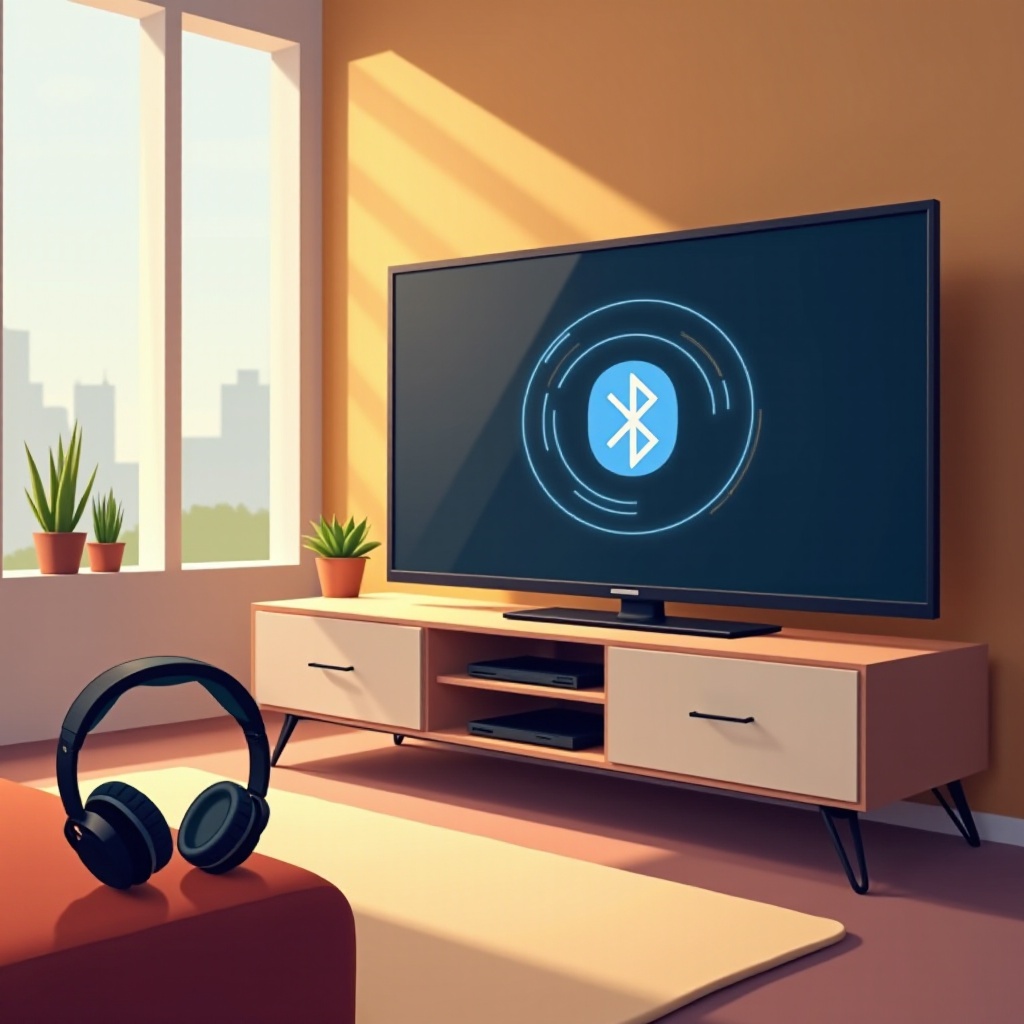
For TVs that don’t support Bluetooth, alternatives allow for a wireless audio experience:
– Bluetooth Transmitters: Plug these into your TV’s audio output to transmit sound to Bluetooth headphones. They’re affordable, simple to install, and compatible with almost all TVs.
– Bluetooth-Enabled Soundbars: These enhance audio quality and often include Bluetooth support, connecting your headphones to the soundbar for wireless transmission.
These solutions provide flexibility, ensuring a similar Bluetooth experience even without native TV support.
Top 5 Bluetooth-Enabled TVs for 2024
If you’re considering a new TV, explore these top models with Bluetooth support:
– Television 1: Offers stunning 4K visuals and seamless Bluetooth connectivity with user-friendly controls and strong audio output.
– Television 2: Features an ultra-thin design with exceptional range and supports dual headphone connectivity for shared viewing.
– Television 3: A budget-friendly option providing smart features and strong Bluetooth compatibility without breaking the bank.
– Television 4: Boasts a cinematic display with integrated Bluetooth for superior audio and viewing experiences.
– Television 5: Combines sleek style with top-notch performance, offering advanced Bluetooth audio and crystal-clear visuals.
These options highlight the best in Bluetooth technology, delivering a superior wireless audio experience.
Enhancing Your Viewing Experience with Bluetooth Headphones
Maximize your Bluetooth headphone use with these strategies:
– Optimize Audio Settings: Adjust the EQ on both your TV and headphones to tailor sound.
– Update Device Firmware: Ensure both your TV and headphones have the latest updates for improved compatibility and performance.
– Maintain Battery Life: Regular charging prevents interruptions during your listening experience.
Utilizing Bluetooth headphones can transform your viewing, especially useful for late-night entertainment or immersive gaming sessions.
Conclusion
Bluetooth opens up a new world of possibilities for television audio, enhancing both convenience and quality. By understanding how to connect and optimize Bluetooth headphone usage, viewers can fully enjoy a customized entertainment setup. Whether through built-in support, transmitters, or soundbars, the options are abundant for every user to experience the benefits of Bluetooth technology.
Frequently Asked Questions
Can all TVs connect to Bluetooth headphones?
Not all TVs come with Bluetooth support. It’s essential to verify your TV’s specifications or consider alternatives like Bluetooth transmitters.
How can I improve the sound quality when using Bluetooth headphones?
Adjust audio settings on both devices, ensure firmware updates are current, and maintain a minimal distance or barriers between them.
What should I do if there is a delay in audio when using Bluetooth headphones?
Ensure devices are within range, reset the connection, or opt for headphones that offer aptX Low Latency support to minimize lag.