
Introduction
The red light on your Asus laptop is more than just a signal; it is a communication tool that alerts you of underlying issues that require your attention. Understanding what this indicator means and knowing how to troubleshoot common problems can save time and prevent potential damage. A red light might point to power issues, charging malfunctions, or more severe internal errors. In this guide, we provide actionable steps to address these concerns, ensuring your laptop’s seamless performance and prolonged lifespan.
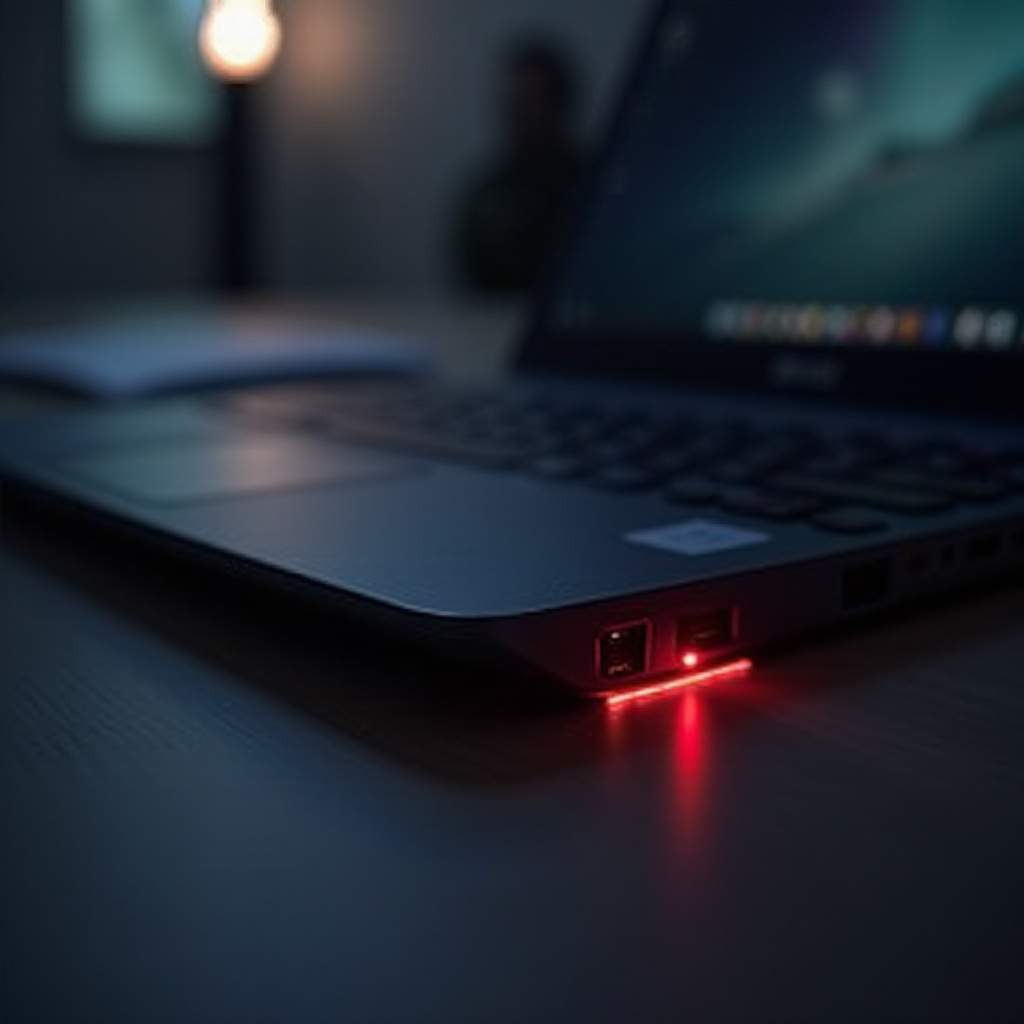
Understanding the Asus Laptop Red Light
Your Asus laptop’s red light serves critical functions in indicating the device’s current status. Learning to interpret this signal accurately helps in swiftly addressing issues.
What Does the Red Light Mean?
The red light commonly refers to power or charging problems. Most often, it indicates a low battery that requires immediate charging. However, persistent red alerts might signal deeper issues that need prompt resolution to prevent further complications.
Common Causes of the Red Light Indicator
Several conditions can trigger a red light on your Asus device:
- Low Battery: A simple low battery level is checked by charging the device.
- Charging Malfunctions: Faulty cables or adapters can cause ineffective charging.
- Internal Errors: Occasionally, red lights might indicate hardware or software glitches that need attention.
Once you understand the potential reasons, the next step is to engage in basic troubleshooting, as this lays the groundwork for addressing these issues.
Basic Troubleshooting Steps
A systematic approach to troubleshooting can alleviate many problems associated with the red light. These steps should be your first line of action.
Checking the Power Source and Battery
- Confirm Power Source: Ensure the laptop receives power by plugging it into a working outlet; confirm by testing multiple outlets if necessary.
- Battery Check: If applicable, remove and reinsert the battery, and look for visible signs of damage that might impair functionality.
Inspecting the Charging Cable and Adapter
- Examine Adapter and Cable: Look for physical defects or faulty connections. Test with an alternative, compatible charging setup for confirmation.
- Secure All Connections: Ensure all connections are firm and correctly aligned with both the device and power outlet.
Performing a Hard Reset
Transient issues can sometimes be cleared with a hard reset:
- Power Down: Turn off your device by holding the power button until it shuts down completely.
- Restart: Power back up and check the indicator light’s status to see if the issue persists.
Transitioning from these standard protocols to more advanced methods, let’s explore further steps if the red light continues.

Advanced Troubleshooting Techniques
Should basic troubleshooting fail, move to advanced techniques for a more thorough analysis.
Updating the BIOS and Drivers
Staying updated is vital for your device’s health:
- Update BIOS: Visit the Asus support page to download the latest BIOS update specific to your laptop model.
- Driver Update: Ensure all essential drivers are current, especially those governing power management.
Performing a System Diagnostics Test
Running system tests can help diagnose hidden problems:
- Use Diagnostic Tools: Utilize Asus’s built-in diagnostics to perform a thorough check.
- Diagnose and Act: Identify any flagged issues and take appropriate corrective measures.
Checking for Hardware Malfunctions
Consulting professional help or doing a self-check can be imperative:
- Internal Inspection: For those comfortable, inspect internal hardware for any loose connections or obvious faults.
- Professional Consultation: If issues persist, seek assistance from certified Asus technicians for a comprehensive evaluation.
Having explored these potential solutions, preventative care is essential in ensuring longevity and optimal performance.
Preventative Maintenance Tips
Proactive maintenance is key to preventing the red light problem from recurring.
Battery Care and Optimization
- Effective Charging Practices: Avoid letting the battery completely discharge regularly; maintain a balanced charge level.
- Genuine Accessories: Rely on original chargers to ensure device health and safety.
Importance of Software Updates
- Regular Update Routine: Keep your system and applications updated with the latest patches and versions.
- Pre-Installation Review: Always check for any existing compatibility issues before software updates.
Environmental Considerations for Longevity
- Heat Management: Ensure your laptop is used on appropriate surfaces to prevent overheating.
- Use Protective Gear: Utilize accessories like cases and keyboard covers to prevent physical damage.
Implementing these preventive strategies will ensure your laptop operates smoothly, safeguarding against recurring red light alerts.

Conclusion
In summary, the red light on your Asus laptop is not merely a warning but an essential communication alert that demands attention. By following the outlined troubleshooting steps and engaging in regular maintenance, you can quickly resolve such issues and prevent them from arising in the future. Embrace these practices to ensure your laptop remains reliable and efficient over time.
Frequently Asked Questions
Why is my Asus laptop showing a red light when charging?
Your Asus laptop may show a red light when charging due to a low battery or issues with the charging cable, adapter, or port.
Can a red light indicate a hardware problem on my Asus laptop?
Yes, a persistent red light might signal hardware problems that require professional examination to prevent further damage.
How often should I perform maintenance checks on my Asus laptop?
Perform basic maintenance checks monthly and comprehensive hardware checks bi-annually to maintain optimal performance.