
Introduction
Encountering an update loop with your Xbox One can be a real hindrance to enjoying your gaming sessions. This issue arises when your console fails to complete system updates, causing the process to restart endlessly. It can be caused by various factors such as internet connectivity issues, software glitches, or corrupted files. Understanding and addressing this problem is crucial to resuming uninterrupted gaming. Let us guide you through effective steps to solve this issue and get your Xbox One back to optimal performance.

Understanding the Xbox One Update Loop
An update loop is essentially your Xbox One’s failure to complete a necessary update, resulting in repeated attempts to install the update that never succeed. Recognizing this issue involves noting signs such as prolonged update times, system restarts, and error messages related to update failures. Pinpointing this early can help in taking the correct steps to resolve it.
Once you’ve identified that an update loop is the issue, the next step involves preliminary checks and solutions that can often fix the problem easily.
Initial Troubleshooting Steps
Here are some straightforward actions you can take immediately to try and resolve the issue, minimizing disruption to your gameplay:
- Check Your Internet Connection:
-
A reliable internet connection is vital for successful updates. Check your connection stability by reconnecting to your network or switching from a wireless to a wired connection to enhance stability.
-
Perform a Simple Restart:
- Restart your Xbox One by holding the Xbox button on the console for 10 seconds until it shuts down completely. Turn it back on after a brief wait to see if the update proceeds successfully.
If these steps do not resolve the problem, it may be necessary to explore more complex troubleshooting solutions.
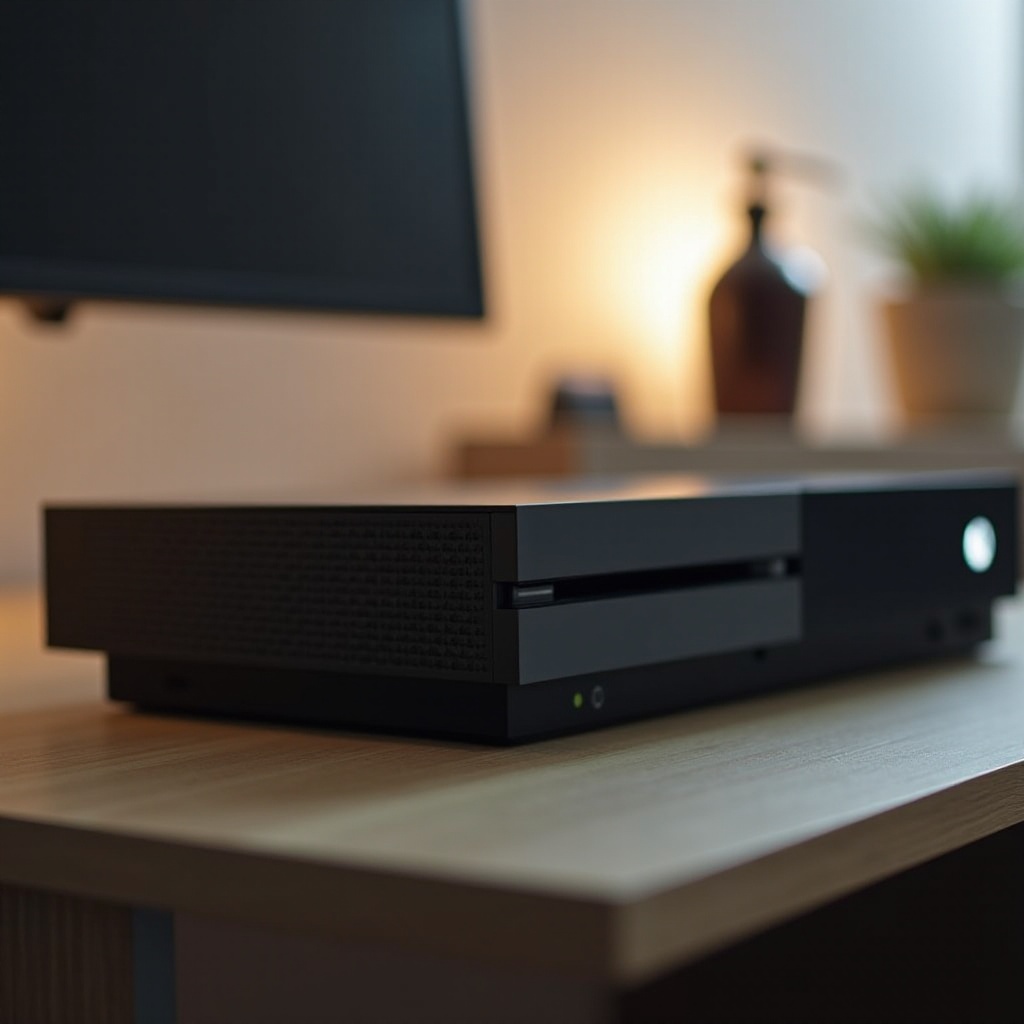
Advanced Solutions for Breaking the Update Loop
Should the basic fixes above prove ineffective, advanced methods may be required:
- Power Cycle Your Xbox One:
-
Power cycle your console by turning it off and unplugging it from the power source. Wait for 10 seconds to discharge any residual power, then reconnect and turn it on. This can clear temporary issues causing the loop.
-
Clear Persistent Storage:
- Go to Settings > Disc & Blu-ray > Persistent Storage and choose ‘Clear Persistent Storage’. This clears temporary data that might be causing conflicts during updates.
These methods provide deeper system resets and data clears, which often resolve more entrenched issues that simpler actions cannot. If your update issues persist, executing an offline update can be a viable solution.
Offline Update Process for Xbox One
When network-related problems arise, performing an offline update is an effective method to manually install necessary updates:
- Preparing a USB Flash Drive for Offline Update:
-
Acquire a USB flash drive with at least 6 GB of space and format it to NTFS. Download the OSU1 (Offline System Update) file from the Xbox support site on your computer, storing it on the USB drive.
-
Steps to Perform an Offline Update:
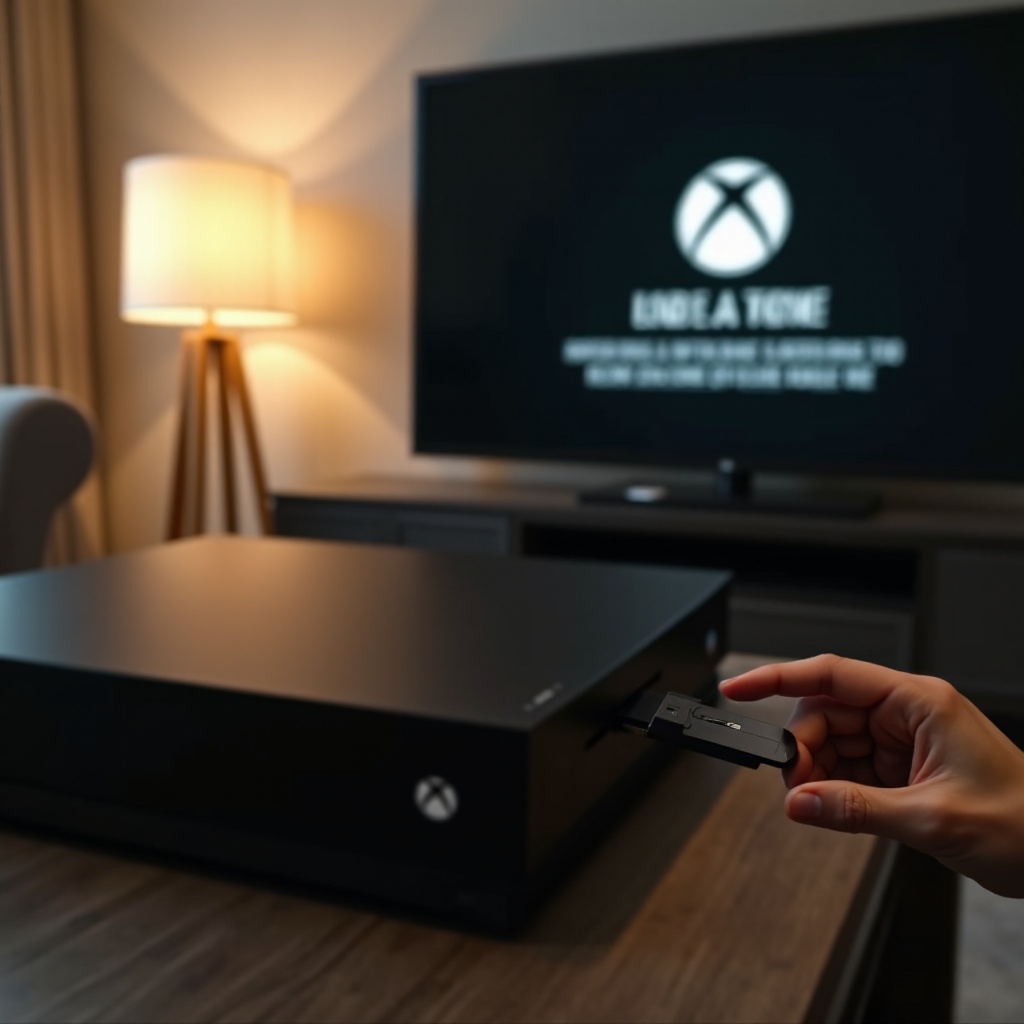
- With your Xbox One turned off, insert the USB drive into the console. Press and hold the BIND and EJECT buttons on the console, then press the Xbox button. Continue holding the BIND and EJECT buttons for 15-20 seconds until two power-up tones are heard. Release the buttons, and the offline update should begin automatically.
By bypassing the console’s network dependence, this method allows direct application of critical updates necessary for system functions and improvements. If these steps do not suffice, a factory reset might be the final option.
Resetting Your Xbox One as a Last Resort
If all other efforts fail, a factory reset may be the necessary course of action. While this removes all data from your console, it also resolves persistent software issues:
- Backing Up Important Data:
-
Ensure you have backed up essential game saves and data to the cloud or an external device.
-
Steps to Perform a Factory Reset:
- Navigate to Settings > System > Console info & updates > Reset console. Choose ‘Reset and remove everything’ to begin the process, restoring your console to its original state.
It is recommended to consider a factory reset only when all other solutions have been exhausted, due to the complete data wipe it entails.
Conclusion
Resolving an Xbox One stuck in an update loop is achievable with the right knowledge and steps. From checking connections to advanced offline updates, multiple methods exist to address this concern. By trying these strategies, most users find their Xbox One can be restored to full functionality, allowing them to enjoy seamless gaming once more.
Frequently Asked Questions
What causes the Xbox One to get stuck in an update loop?
An Xbox One may get stuck in an update loop due to network issues, corrupted update files, or system glitches affecting update installations.
Is it safe to perform a factory reset on my Xbox One?
Yes, it is safe but should be a last resort. Ensure data backup as a factory reset will erase all personal files and settings.
How can I contact Xbox Support for further assistance?
Visit the official Xbox Support website to access resources or connect with support for personalized assistance.